Vaults
This page lists all the vaults you have defined. You can add as many as you want.
Which vault does my connector need?
Each connector that reaches an authenticated service relies on a vault. Use this table to know which one to create before deploying an instance. Connectors that read a public status page (Discord, Slack, Zoom, Cloudflare, Digital Ocean, and most status-only connectors) need no vault at all.
| Vault | Connectors that use it |
|---|---|
| Azure | Azure Resources, Azure Filtered Metrics, Azure Log Analytics |
| Graph API | Azure Admin, Office 365 |
| Graph API v2 | Azure Entra Id |
| Google Cloud | GCP Compute Engine, GCP Filtered Metrics, GCP Logs, GCP Logs Advanced, Google Analytics 4 |
| Ekara | IP-Label Ekara |
| Mr Suricate | Mr Suricate |
| New Relic | New Relic |
| Kamatera | Kamatera |
| OVH | OVH |
| Gandi | Gandi |
| Lansweeper | Lansweeper |
| Okta | Okta, Okta Filtered Logs |
| PayPlug | PayPlug |
Adding a vault
By clicking on the Add button, you will expand a list of every type of vaults available. Just click on the one you need and fill the form with associated information. You can easily modify or delete a vault later by pressing the associated button. For security reasons, some properties are not readable, but you can still update them.
Azure
Register the SenHub as a new application
We refer you to the official Microsoft documentation to get the credentials and authentication information needed to collect the metrics. Important: - Only read access to resources is required. - Only client secret credential authentication mode is supported.
Properties
- Name*: Just a simple label to find it easier in the SenHub's interface
- Application ID*: Application ID of the app you created in your Azure tenant.
- Application secret*: Associated secret given by Azure when you create your app. Not readable.
- Tenant ID*: ID of your Microsoft Azure tenant, containing the resources you want to monitor.
- Subscription ID*: The ID of the subscription where your resources are stored.
- Description: Description for your own usage only.
Ekara
No application to declare here, you just need your login/password given by the IP-Label team. Properties
- Name*: Just a simple label to find it easier in the SenHub's interface
- Email*: The mail address used to authenticate on the Ekara interface.
- Password*: Associated password. Not readable.
- Description: Description for your own usage only.
Gandi
To use our Gandi Connector, it is necessary to configure an Api key. It is very easy to create. Just follow this guide to generate your key. Properties
- Name*: Just a simple label to find it easier in the SenHub's interface
- Api Key*: The Api Key configured in your Gandi account.
- Description: Description for your own usage only.
Google Cloud
Our Google Cloud Vault is used for every GCP supported product in the SenHub. This vault stores information relating to your Google Cloud project, and your APIs and google services must be enabled for monitoring/logging purposes (more info on how to set them up in relevant instance documentation).
To use our GCP connector, it is necessary to configure a service account. It's very simple to create. Go to your GCP console or click this link: https://console.cloud.google.com/. Then, in the upper left corner, select the project for which you want to retrieve your logs. In the search bar, type "Service Accounts" and select it. You can either use the default account or create a new one.
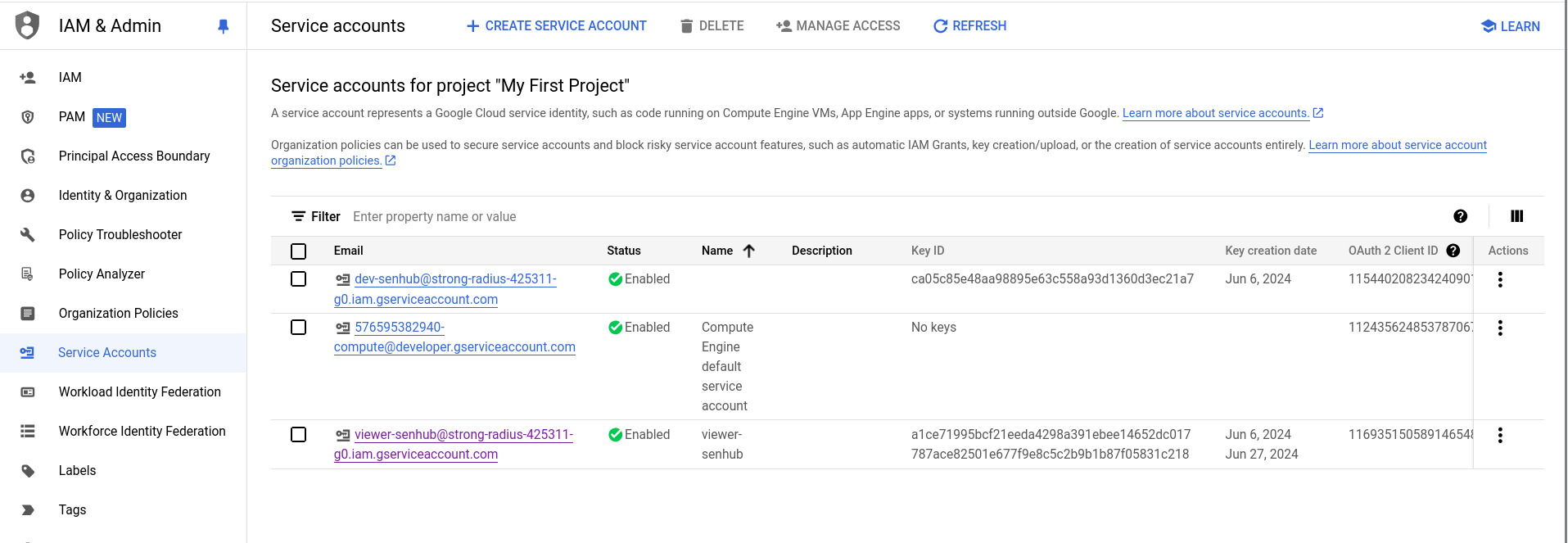
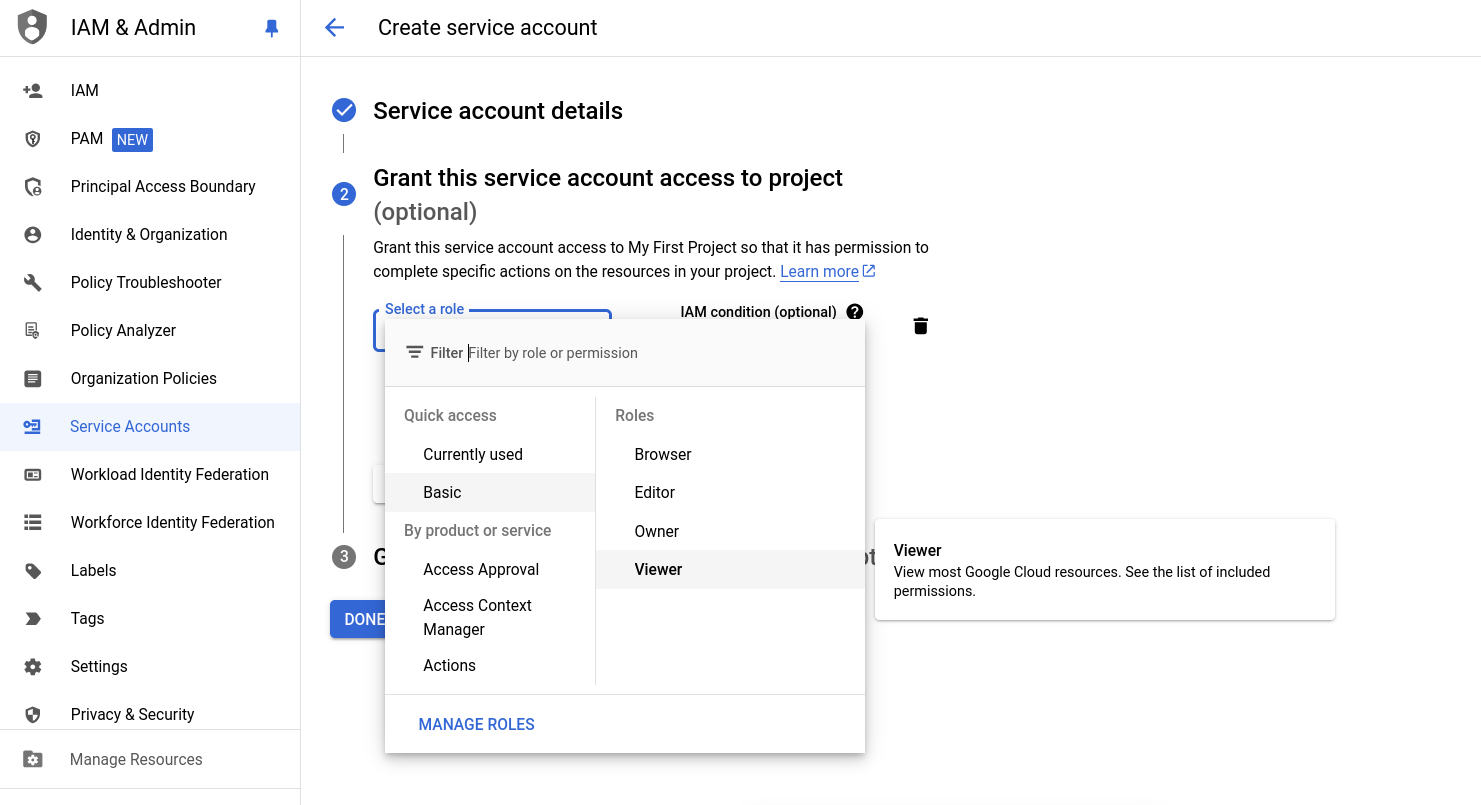
To create a new one, click "Create service account", give it a name and description as you wish, the most important thing is to give it the role Viewer in category "Allow this service account to access the project (optional)" so it can access your project and read your logs, you can add more options but it's optional for our Vault.
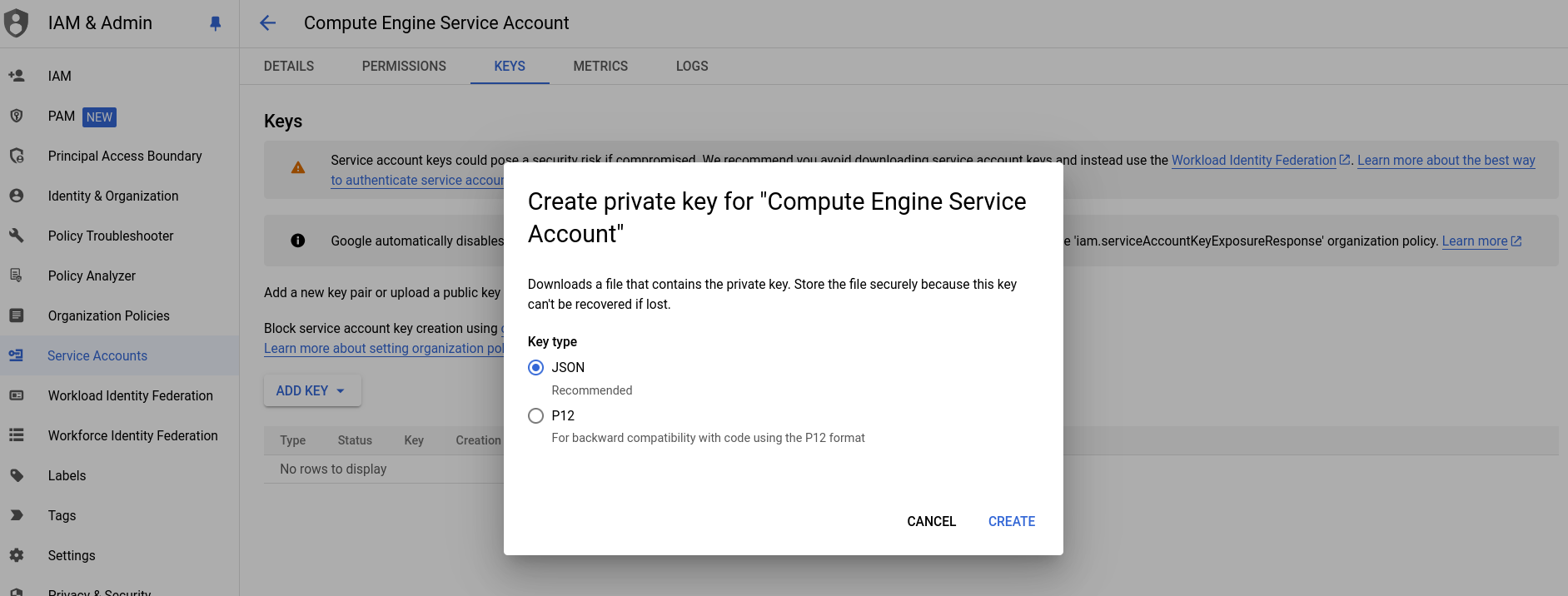
Once it is created, we can get our account key, which will be used by SenHub. First click on your newly created account in the Iam Interface. It will lead you to the account details. Go to the "Keys" tab, you can now Add Key, Create Key and select JSON as the key type, you can now Create. It should download a JSON file, all you need to do now is to upload it into the JSON File field in your SenHub Google Cloud Vault.
Properties
- Name*: Just a simple label to find it easier in the SenHub's interface
- Description: Description for your own usage only.
- JSON File: The JSON file of the key you downloaded in your GCP Keys
Graph API
The Graph API Vault is used for some connectors that use the Graph API to get metrics. This includes Azure admin and Office 365 connectors. Register SenHub as a new application and give application permissions to this app.
We refer you to the official Microsoft documentation to get the credentials and authentication information needed to collect the metrics.
Important: - Only read access to resources is required. - All necessary rights are listed at the top of each application section in this documentation.
Properties
- Name*: Just a simple label to find it easier in the SenHub's interface
- Application ID*: Application ID of the app you created in your Azure tenant.
- Access secret*: Associated secret given by Azure when you create your app. Not readable.
- Description: Description for your own usage only.
Graph API v2
The Graph API v2 Vault is used for the new connector Entra Id. Register SenHub as a new application and give application permissions to this app.
We refer you to the official Microsoft documentation to get the credentials and authentication information needed to collect the metrics.
Important: - Only read access to resources is required. - All necessary rights are listed at the top of each application section in this documentation.
Properties
- Name*: Just a simple label to find it easier in the SenHub's interface
- Application ID*: Application ID of the app you created in your Azure tenant.
- Access secret*: Associated secret given by Azure when you create your app. Not readable.
- Tenant Id*: The id of your tenant.
- Description: Description for your own usage only.
Kamatera
Authentication just requests an API Client ID/secret pair that you can generate in your Kamatera console at this address.
Properties
- Name*: Just a simple label to find it easier in the SenHub's interface
- API Client ID*: The client ID provide in the Kamatera console.
- API Secret*: Associated Secret. Not readable.
- Description: Description for your own usage only.
Lansweeper
In order to request your dashboards, you first need to create a Cloud Application on Lansweeper. To do that, go to your Settings, select Developer tools, then click on All applications to be able to click on Add new application to select Cloud Application.Then, fill the main information:
Main information
- Application name*: A simple label to make it easier to identify in the Lansweeper interface.
- Allowed callback URL*: This callback URL allows to connect to the SenHub. Insert: https://api.senhub.io/callback
- Integration*: You can find "SenHub" in the list.
- Application image: This image will help you to identify the application you are about to create for the application catalog.
- Developed by: Optional.
- Description (Optional): Optional.
Just click on ADD APPLICATION and your Cloud Application is created!
After creating your Cloud Application, you'll find it in the All applications list, if you click on it, a new interface will display the main information about it. The Client ID and the Authorization URL are automatically filled. To connect your Cloud Application to your Lansweeper Vault in SenHub, you'll need to click on REFRESH TOKEN under the "Secret ID" category. This action will generate a .txt file containing your client credentials, which you'll need for the next step. Then, by clicking on AUTHORIZE next to the Authorization URL, you'll be redirected to our Sign-in page. Log in to create your new Lansweeper Vault. Fill in your credentials and the name of your vault, then click on Create, and there is your Lansweeper Vault!
If you'd like to see this procedure in action, watch our tutorial video on how to set up the lansweeper connector!
Mr Suricate
In order to use our Mr Suricate, you need to configure an API Key. You can find it on the dashboard of Mr Suricate. Go to the top right corner click on your profile account and then get the API Key.
Properties
- Name*: Just a simple label to find it easier in the SenHub's interface
- Api Key*: The Api Key configured in your Mr Suricate Dashboard
- Description: Description for your own usage only.
New Relic
Authentication just requests an API Account ID/API Key pair. To create your access tokens, go to the "API Keys" menu in your account. You can use a "USER" profile. Properties
- Name*: Just a simple label to find it easier in the SenHub's interface
- Account ID*: The account ID provide in the New Relic interface.
- API Key*: Associated Secret. Not readable.
- Description: Description for your own usage only.
Okta
You will need both your Okta Domain and an Api key to access your organization data.
To find your domain, you can follow this link. Also, the Okta documentation explains quite well how to create your token. Keep in mind that Okta's tokens last for 30 days without usage, after which you will need to generate another one.
Properties
- Name*: Just a simple label to find it easier in the SenHub's interface
- Okta Domain*: Your organization domain for Okta, be careful not to include 'https://'.
- API Key*: Your SSWS key, global for all your Okta applications.
- Description: Description for your own usage only.
OVH
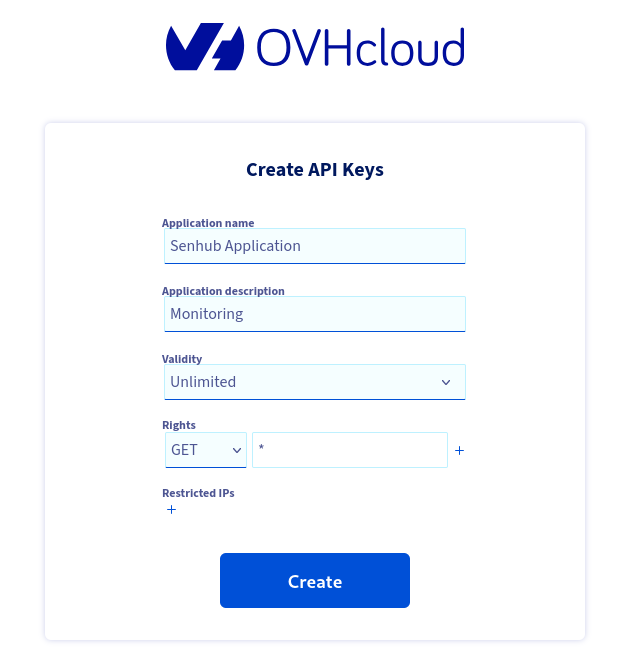
You will need to create an API key to access to your data. You will find the instructions with the official OVH documentation.
Recommendations:
- Use an unlimited validity.
- For the Rights, choose GET with a *.
If you make any other choice, SenHub may not serve you all the data you are requesting.
Properties
- Name*: Just a simple label to find it easier in the SenHub's interface
- Application secret*: This is your application secret key. Not readable.
- Application consumer key*: This is your consumer key. Not readable.
- Application key*: This is your application key.
- Description: Description for your own usage only.
PayPlug
Authentication just requests your secret Live key secret, available in the "My account" section of the Payplug portal (Parameters/API keys).
Properties
- Name*: Just a simple label to find it easier in the SenHub's interface
- API Live Key*: Secret of your Live key. Easily recognizable because of the sk_live_ prefix. Not readable.
- Description: Description for your own usage only.